Install Guide
Takes about 3 minutes. Every step has a picture, so it's easy even if you rarely use a Mac.
1Check that your Mac can run it
For now, OldCat runs only on Mac computers that meet two conditions:
- An Apple M-series chip (M1, M2, M3, M4…)
- macOS 26 or later
To check: click the Apple menu in the top-left corner of the screen, then “About This Mac”.
2Download the installer
Click the blue button below. Your browser will download a file called OldCat-Beta.dmg (about 18 MB).
When it's done, it will be in your Downloads folder. To find it, look at the Dock at the bottom of the screen and click the folder with a down arrow on the right.
3Double-click the installer
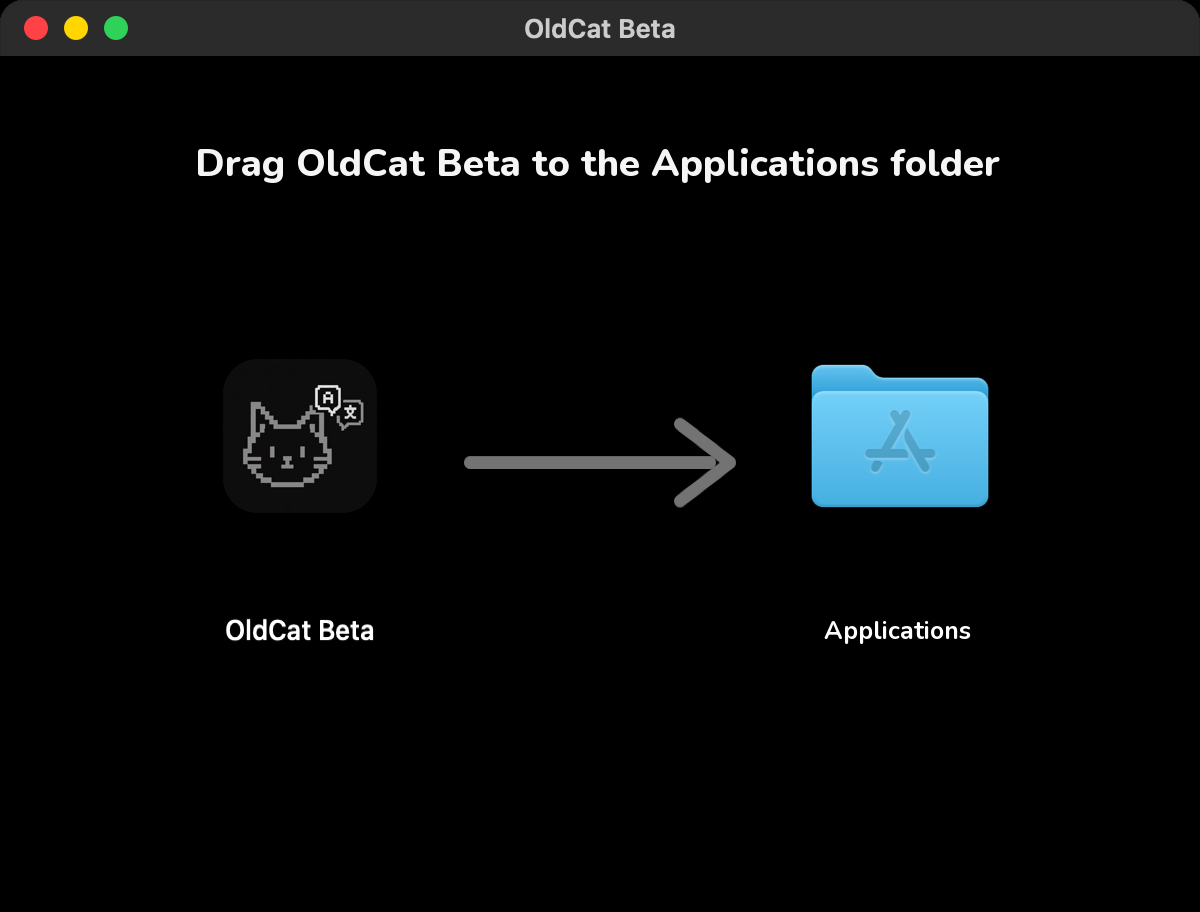
In Downloads, find OldCat-Beta.dmg and double-click it. After a few seconds, this window appears:
4Drag the cat into Applications
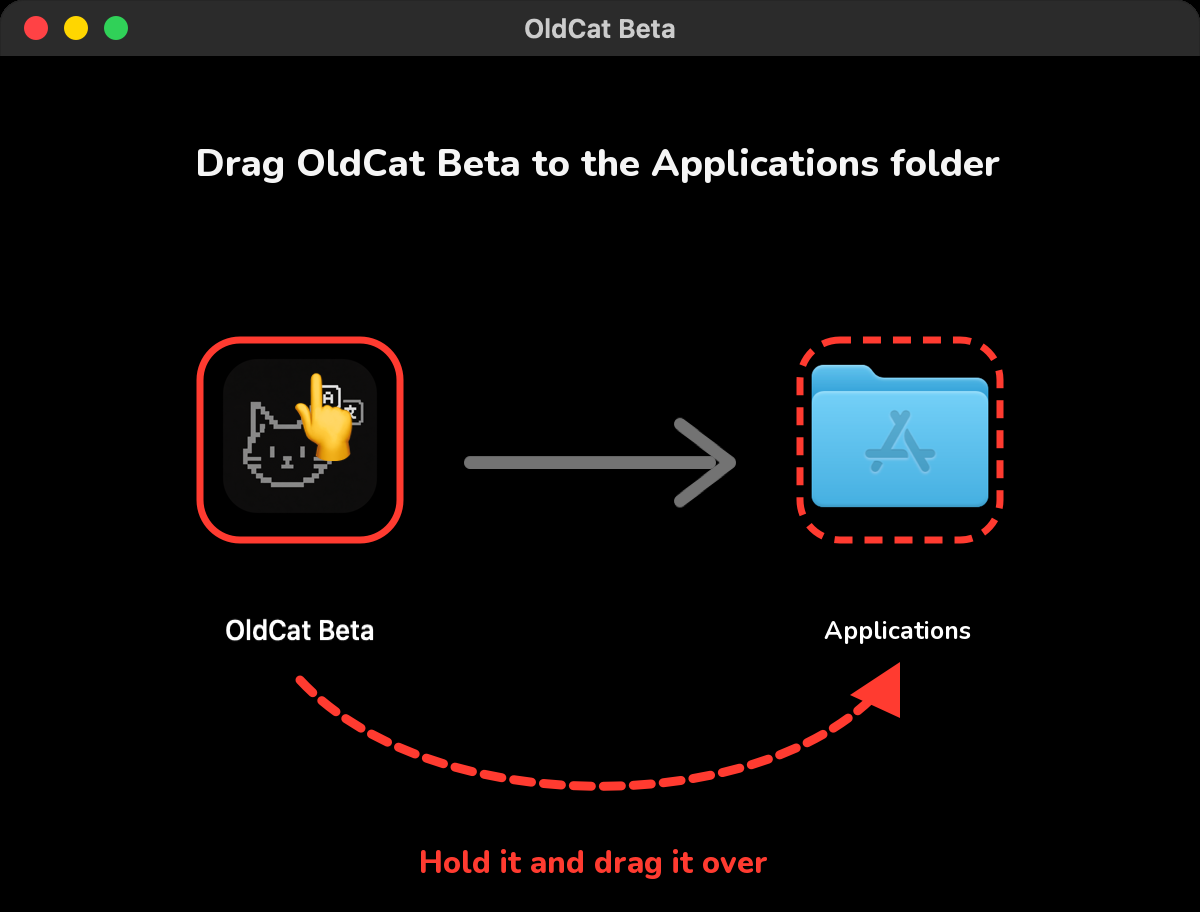
- Point at the cat icon on the left (an orange cat on purple);
- Click and hold (on a trackpad, press and don't let go);
- Keep holding and drag it to the right, onto the blue Applications folder;
- Let go. A copy progress bar appears — when it finishes, OldCat is installed.
5Open OldCat for the first time
Press ⌘ command + space, type OldCat, and press return ⏎.
Or open Finder, click “Applications” on the left, find the cat icon on purple called OldCat Beta, and double-click it.
6Blocked by macOS? Here's how to allow it (only once)
Because this is a beta, the first time you open it your Mac will probably say “OldCat Beta” Not Opened. That's normal and it isn't a virus. Do this:
“OldCat Beta” Not Opened
Apple could not verify “OldCat Beta” is free of malware that may harm your Mac or compromise your privacy.
DoneMove to Trash- Click the Apple menu in the top-left corner and choose “System Settings”;
- In the sidebar, click “Privacy & Security”;
- Scroll down to “Security” at the bottom. You'll see ““OldCat Beta” was blocked…” — click “Open Anyway” next to it.
macOS asks once more: click “Open Anyway”, then enter your Mac login password (or use Touch ID). After that it opens normally and won't ask again.
Open “OldCat Beta”?
Only open this app if you're certain it comes from a trustworthy source.
Open AnywayDone7Allow the microphone
OldCat needs to “hear” your professor, so it asks to use the microphone. Click “Allow”.
“OldCat Beta” would like to access the microphone.
OldCat uses the microphone to hear your lectures and turn speech into text on this Mac.
Don't AllowAllow8Create an account and get started
You'll see the sign-in window. If it's your first time, click “Create Account” at the bottom and follow the steps:
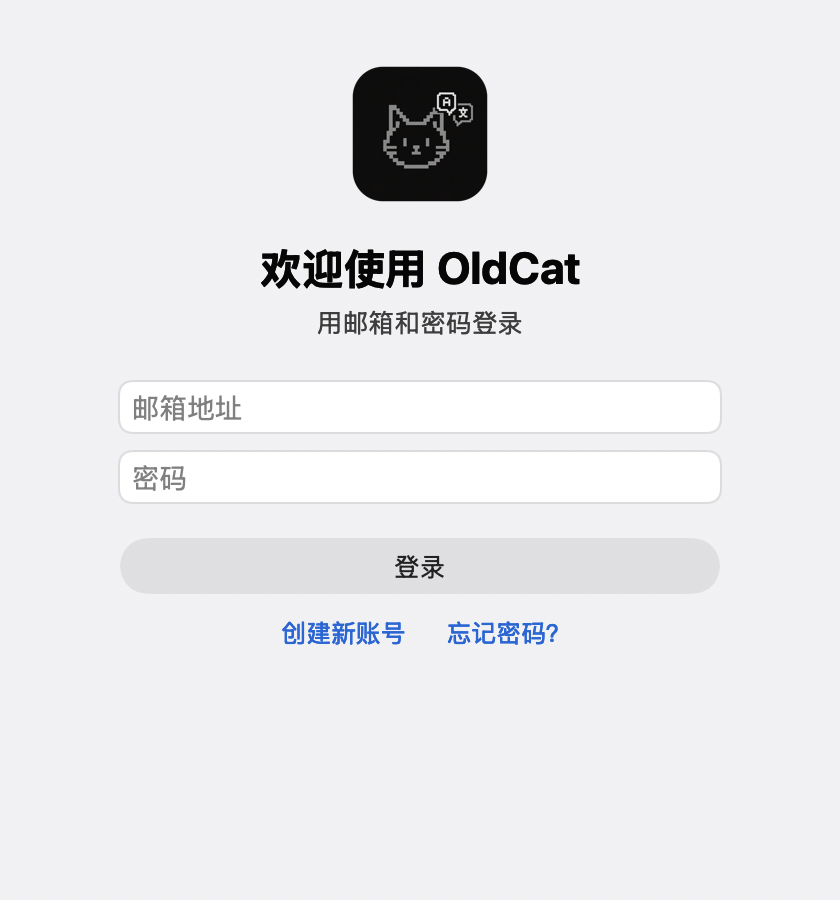
- Enter your email and click “Next”;
- Find the OldCat verification code email and type in the 6 digits (check your spam folder if it isn't there);
- Choose a password (at least 8 characters) and type it twice;
- Make your own cat: pick a breed, coat, face and eyes, drag the cat left or right to turn it around, give it a name, and click “Finish”.
The first time you go in, OldCat asks whether your class content may be processed by AI (for live translation and notes; we don't keep it). Click “Agree”.
That's it! In class, click “Start” at the top of the main window and OldCat starts listening and translating. After class, click “Stop” to save.
📱iPhone and iPad
The iPhone and iPad apps are coming soon to the App Store. They share one account with the Mac app: your cat, your classes and your Vocab on all three.
iPhone · Coming sooniPad · Coming soon
Once they're out, App Store download buttons will appear here.
?Troubleshooting
“is damaged and can't be opened”, or “Finder doesn't have permission”
- Press ⌘ command + space, type Terminal and press return ⏎. A window full of text opens;
- Click the line below once (it selects all of it) and press ⌘ command + C to copy it:
xattr -cr "/Applications/OldCat Beta.app"
- Back in Terminal, press ⌘ command + V to paste, then return ⏎. If nothing is printed, it worked;
- Double-click OldCat Beta in Applications again.
Nothing happens when I double-click the installer
It may not have finished downloading, or the download was damaged. Delete it and download it again with the button in step 2. Don't open it with a chat app's “unzip”; double-click it in Downloads.
I can't find OldCat
Press ⌘ command + space, type OldCat, and press return ⏎. To keep it handy: with OldCat open, right-click the cat in the Dock → Options → Keep in Dock.
Still stuck? Email [email protected], ideally with a screenshot (press ⌘ + shift + 4 and drag over the area).